Use session effects in Shopify
In this tutorial, we'll show you how to expose Talon.One's effects in Shopify.
You can use these effects, for example, to display messages in your storefront, based on the results of your Talon.One campaign rules.
This tutorial is only for theme-based stores using Liquid.
For Hydrogen or other headless stores, you can retrieve effects by calling the Create or update customer session endpoint of the Shopify Integration API. The call must include the Shopify cart ID, which is used as the customer session ID in Talon.One.
Talon.One requirements
- You are an admin user.
- You have set up an Application and a campaign.
- You have set up a profile-based loyalty program.
Shopify requirements
- You are an administrator user.
- You have completed the basic setup of the Talon.One Shopify app.
How it works
The Talon.One Shopify app includes an app embed that automatically creates or updates a customer session in Talon.One when a customer modifies their cart in Shopify.
The app embed also fetches the returned effects
and stores them in a custom cart attribute named talon_one_session_effects.
You can use this attribute in your storefront, for example, to display loyalty information to your customers.
Set up the integration
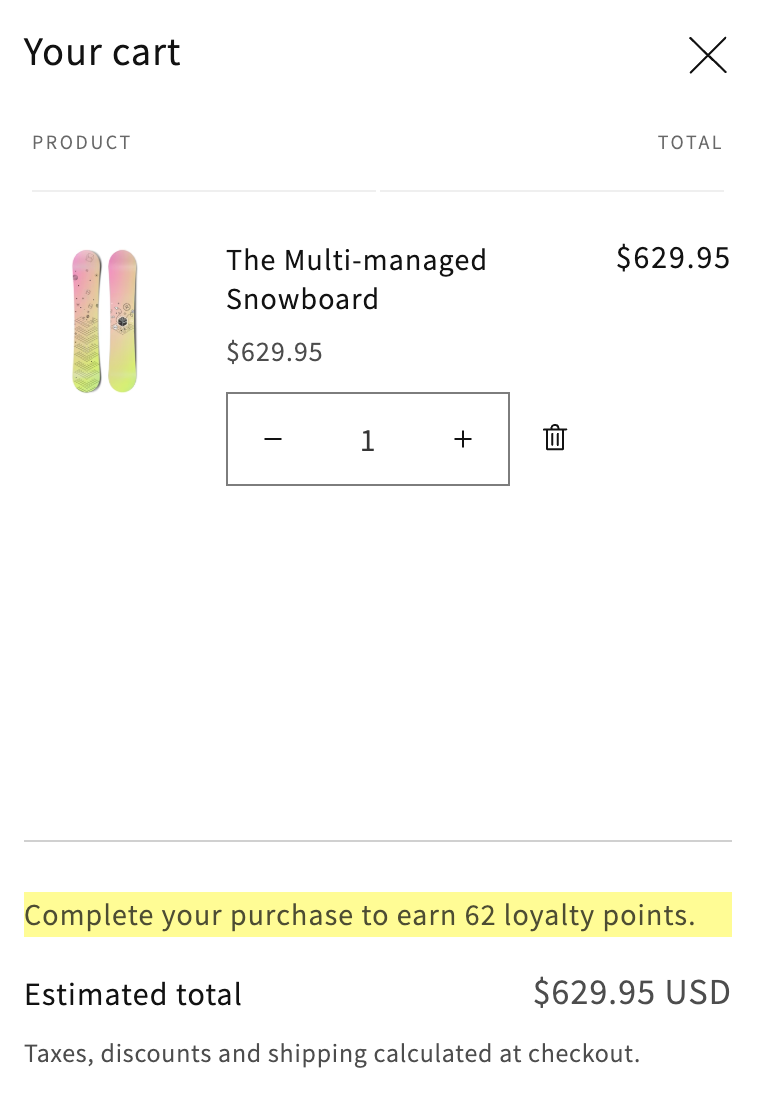
Let's set up the following loyalty message in Shopify, informing customers about how many loyalty points they will earn with their current cart:
Create a rule in Talon.One
Create a rule in your Talon.One campaign that adds 10% of the total cart value as loyalty points to orders over $100:
| What | Name | Properties |
|---|---|---|
| Conditions | Check attribute value | [Session.Total] is greater than 100 |
| Effects | Add loyalty points |
|
Now, the higher the cart value, the more loyalty points customers will earn. To display the number of points customers will earn, you must modify the theme of your Shopify store.
Modify your Shopify theme: HTML
In the cart page of your Liquid theme, add HTML code to provide a placeholder for the loyalty message:
-
In Shopify, open Online Store > Themes.
-
Find the theme that you want to edit and click ... > Edit code. In this tutorial, we'll use the Dawn theme.
-
Find the file that renders the footer of your cart page. In most themes, it is located here:
snippets/cart-drawer.liquidif you are using a cart drawer.sections/main-cart-footer.liquidif you are using a cart page.
-
Search for
sections.cart.estimated_totalto find the label for the total cart value. Above the label, add the following HTML code:<div><p class="cart-session-effects" data-cart-session-effects></p></div> -
Click Save.
Modify your Shopify theme: JavaScript
Because the talon_one_session_effects attribute is a String containing a JSON array of
effects, which Liquid cannot parse, we use JavaScript code to parse the array and
extract the loyalty points value.
To add the JavaScript code:
-
Find the JavaScript file that handles cart updates. In most themes, it is located at
assets/cart.js. -
At the bottom of the page, add the following JavaScript code:
// Parse the talon_one_session_effects attribute and extract the loyalty points valuefunction parseTalonSessionEffects(raw) {if (!raw || typeof raw !== 'string') return null;try {// Parse the JSON array of effectsvar effects = JSON.parse(raw);if (!Array.isArray(effects) || !effects.length) return null;// Extract the "value" parameter from the first effect's props// The parameter holds the number of loyalty points to be awardedvar first = effects[0];if (!first || first.effectType !== 'addLoyaltyPoints' || !first.props || typeof first.props.value === 'undefined') return null;return first.props.value;} catch (e) {return null;}}// Render the loyalty message in the cart based on the effectsfunction renderTalonSessionEffects(raw) {var value = parseTalonSessionEffects(raw);var elements = document.querySelectorAll('[data-cart-session-effects]');if (!elements.length) return;elements.forEach(function (el) {// Hide the message if no loyalty points are availableif (value === null || value === undefined || value === '') {el.textContent = '';el.hidden = true;} else {// Display the loyalty points messageel.hidden = false;el.textContent = 'Complete your purchase to earn ' + value + ' loyalty points.';}});}// Fetch the cart and retry if the effects haven't updated yetfunction refreshTalonSessionEffectsWithRetry(previousRaw, attempts, delay, initialDelay) {if (attempts <= 0) return;setTimeout(function () {fetch('/cart.js', { credentials: 'same-origin' }).then(function (response) {if (!response.ok) throw new Error('Cart fetch failed');return response.json();}).then(function (cart) {var attributes = cart.attributes || {};var raw = attributes.talon_one_session_effects;// If the attribute hasn't been populated yet or hasn't changed, retry after delayif (!raw || (previousRaw !== null && raw === previousRaw)) {refreshTalonSessionEffectsWithRetry(previousRaw, attempts - 1, delay, delay);return;}// Render the updated effectsrenderTalonSessionEffects(raw);}).catch(function () {// Optional: console.log in dev});}, initialDelay);} -
In the same file, find the function that handles cart updates. In the Dawn theme, it is named
updateQuantity. -
At the end of the function, before
publish(PUB_SUB_EVENTS.cartUpdate ...), add the following code:var previousRaw = parsedState.attributes &&parsedState.attributes.talon_one_session_effects ?parsedState.attributes.talon_one_session_effects : null;// On cart update, refresh the Talon.One effects// We retry up to 5 times with a 500 ms delay between attempts// and no initial delayrefreshTalonSessionEffectsWithRetry(previousRaw, 5, 500, 0); -
In the same file, find the
connectedCallbackfunction. -
At the beginning of the function, add the following code:
// On page load, refresh the Talon.One effects// We retry up to 5 times with a 500 ms delay between attempts// and a 1000 ms initial delayrefreshTalonSessionEffectsWithRetry(null, 5, 500, 1000);
Modify your Shopify theme: CSS
Add some basic CSS to manage how the loyalty points message appears in your storefront:
-
Find the CSS file that manages how the cart page appears to your customers. In most themes, it is located at
assets/component-cart.css. -
At the bottom of the page, add the following CSS code:
.cart-session-effects {margin-block-start: 0;line-height: 1.5;background-color: #fffc95;}
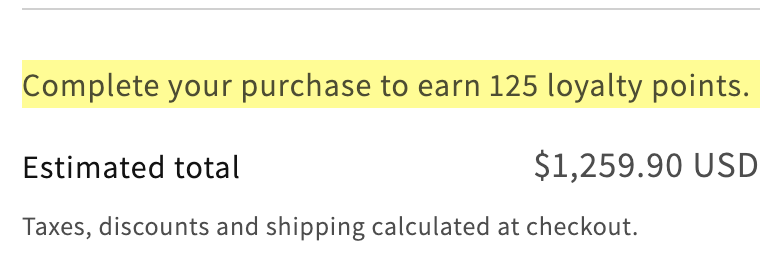
Now, when customers add items to their cart, a message is displayed showing how many loyalty points they will earn if they complete the order. The message is automatically updated after every cart change.