Send birthday coupons via Klaviyo Closed beta
In this tutorial, let's set up an integration to generate coupons in Talon.One and send them to Klaviyo.
Then, you can use these coupons in an email flow in Klaviyo to send birthday coupons to your customers.
Before you start
Talon.One requirements
- You have completed the setup of the Klaviyo integration.
- You are an admin user.
- You have set up an Application.
- Your Application contains a running campaign with the Coupons feature enabled.
Klaviyo requirements
- You have enabled multi-factor authentication (MFA) for your account.
- Your user role is Manager, Admin, or Owner.
- You have created a list. In
this tutorial, we assume the list is named
Newsletter subscribers. - Your customer profiles in Klaviyo contain a custom
property that stores the
customer's birthday. The property must be of type Date and contain the date in the
ISO 8601 UTC date-time format, for example,
1981-06-01T00:00:00Z.
In this tutorial, we assume the property is nameddate_of_birth.
Workflow overview
In the sections below, we set up the following workflow:
- Every day, a flow in Klaviyo checks if any of your newsletter subscribers have their birthday today.
- If a subscriber has their birthday, Klaviyo sends them an email with a coupon code from a batch of 10000 coupon codes created via Talon.One.
- Once a coupon code is sent, Klaviyo marks it as used and removes it from the pool of available codes, so the same code is never sent to another subscriber.
Set up the integration
Create coupon codes in Talon.One
In Talon.One, create a batch of 10000 third-party coupon codes:
- In Talon.One, on the left-side menu of the campaign where you want to create coupon codes, click Coupons.
- Click Create Coupons and select the Third-party codes tab.
- In Integration Hub instance, select the Klaviyo instance that you set up previously.
- In Number of coupons, enter
10000. - Leave the other fields with their default values and click Create & send.
Tip
- For more information about the other fields, see Generate random codes.
- Coupon redemption limits and schedules are not sent to Klaviyo. Klaviyo only receives the generated coupon codes.
- In Klaviyo, open Content > Coupons > API Coupons and wait until 10000/10000 coupon codes are available.
Create a birthday flow in Klaviyo
-
In Klaviyo, open Flows > Create Flow > Build your own.
-
Enter
Birthday couponas the flow name, and click Create Flow. -
In the sidebar, choose the Date property trigger and click Create Flow.
-
In Date property, select the profile property that stores the customer's birthday. In this tutorial, we use
date_of_birth. -
Under When should this flow start?, select On the date property value.
-
In Select a time of day, set the time and timezone the email should be sent, for example,
09:00 AMin your timezone, and click Next. -
Apply the following trigger options:
- Set Re-entry criteria to Allow re-entry.
- Set Repeat on date to Yearly.
-
In Profile Filters, click Add > Add profile filter, select If someone is in or not in a list, select the
Newsletter subscriberslist, and click Save. -
Save the settings and confirm.
-
Add an Email action to the flow and name it
Birthday email. -
In the sidebar, under Templates, click ... > Create text only email.
-
Add the following content to the email body, where
COUPON_BATCH_NAMEis the name of the coupon batch you created, for example,3rdparty_1uo5vwva.Happy birthday, {{ first_name }}!Here's a gift from us: use code {% coupon_code 'COUPON_BATCH_NAME' %} at checkout for your birthday discount.Enjoy your day! -
Click Save, provide a subject line, sender name, and sender email address, and click Done.
-
Click Review and turn on to activate the flow.
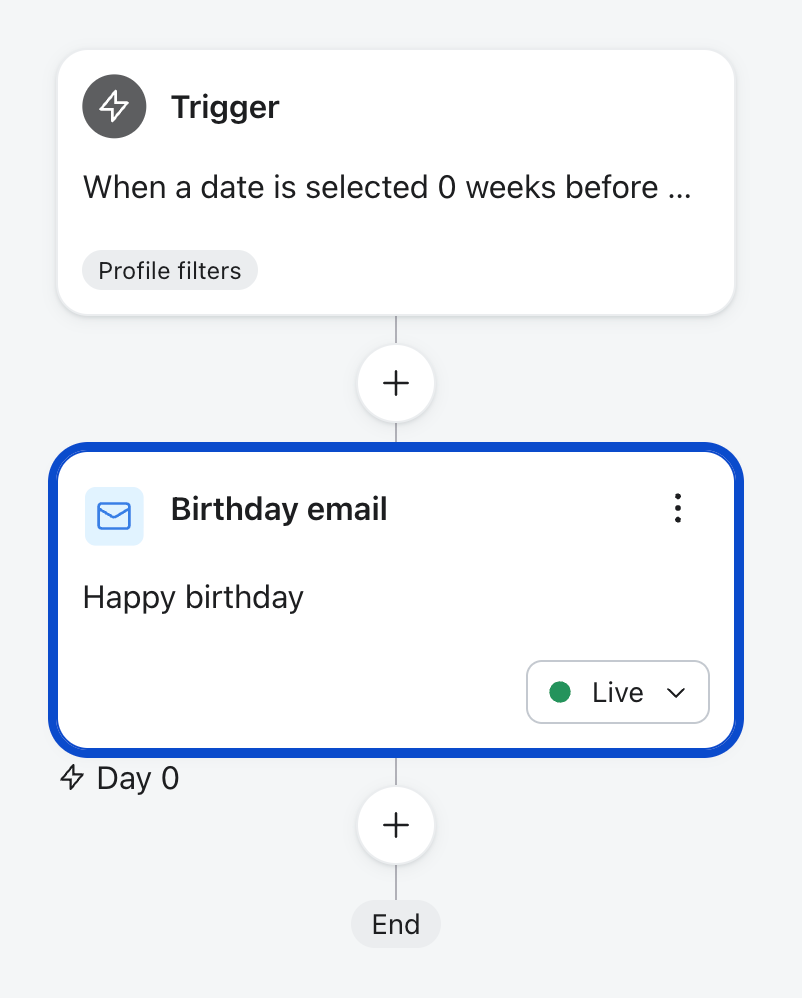
The flow should now look like this:
Test the setup
The flow triggers on the next day at the time you specified. Change the birthday of a customer in Klaviyo to tomorrow's date and confirm that they receive the email with a coupon code.
To send a test email immediately, use the Preview email feature in Klaviyo:
- Open the flow you created and click the Email action.
- In the sidebar, in the Template section, click Edit.
- Click Preview email.
- Choose Send as an email, enter the email address of a test profile, and click Preview Now.
- Verify that the test profile receives the birthday coupon email with an unused coupon code.